Customize Window - General (Time & Sales)
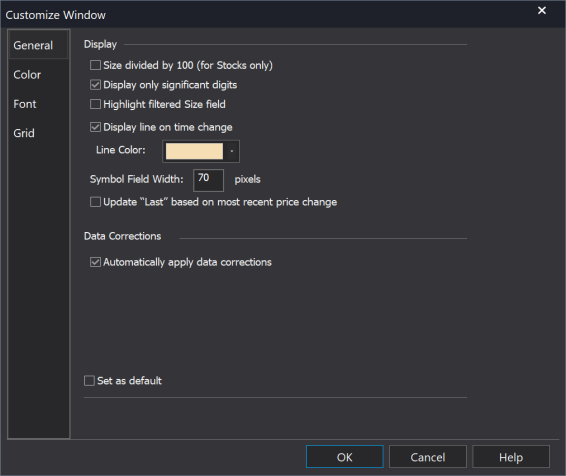
The General tab allows you to customize how data and data corrections are applied in the Time & Sales window.
 Access using the Settings > Window menu sequence and select the General tab.
Display 
Changes how data is displayed in the active Time & Sales window.
- Size divided by 100 (for stocks only) - Check this setting to display the actual number of shares, divided by 100. For example, if you select this setting, 5,000 shares of a certain stock will display as 50 (50 * 100 shares = 5,000 shares) in the Size column.
- Display only significant digits - Check this setting to remove any trailing zeros at end of a price in decimal format.
-
Highlight filtered Size field
-
Display line on time change – Check this setting to display a line that visually separates all transactions based on time. (per Second)
-
Line Color - Choose a color for the line from the color palette
-
-
Symbol Field Width (in Pixels): Use this setting to define the width of the Symbol field in the Quote Bar. Acceptable values range from 70 to 200 pixels.
-
Update “Last” based on most recent price change: Check this setting to update the Last Price field in the Quote Bar with the most recent price change.
Data Corrections
- Automatically apply data corrections - Check this setting to have data feed corrections automatically applied to the data.
Set as Default - Check the setting to save your settings for future Time & Sales windows.
Click OK to apply changes or Cancel to exit without changes.