Customizing Notes for a Drawing Object
- Right-click on the drawing object and select Notes->Customize Note from the shortcut menu.
- The Customize Notes dialog box will open.
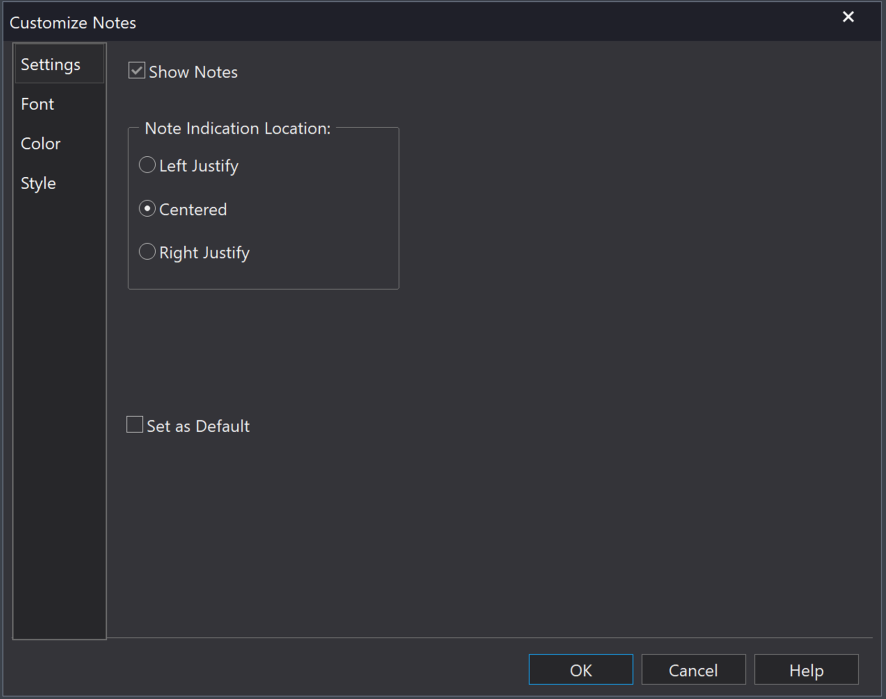
Settings Tab
- Show Notes – Use this setting to toggle the display of the Notes icon.
- Note Indication Location – Select the appropriate setting to align the Notes icon relative to the drawing object.
Font, Color, & Style Tabs
These tabs let you control how notes are displayed within the Notes dialog box.
Related Topics
Enabling Alerts for Studies and Drawing Objects