Customize Editor Options - General
This tab lets you customize general edit settings for EasyLanguage documents.
- Access using the Tools > Options menu sequence from the Editor, then select the General tab.
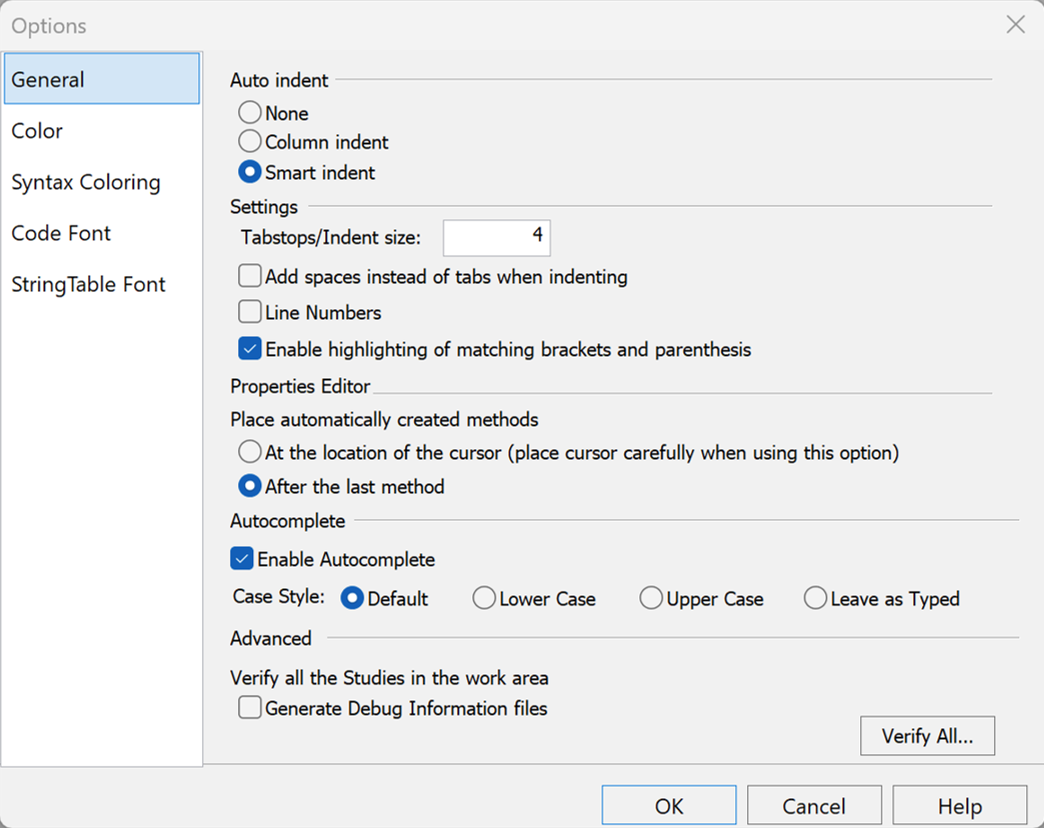
The following section headings appear on the tab:
Auto indent
Changes the setting used to auto indent in the code editor.
Settings
Shows indent and expand settings for the editor.
- Tabstops/Indent size - Enter the number of spaces to indent when the Enable Smart Indent setting is selected.
- Add spaces instead of tabs... - Check this setting to use spaces instead of tabs for indenting.
- Line Numbers - Check this setting to display line numbers in the editor.
- Enable highlighting of matching brackets and parenthesis – Check this setting to visually map nested code structures.
Autocomplete
Controls the automatic lookup/insertion of terms and their case.
- Enable Autocomplete - Check this setting to have the editor show EasyLanguage words that will complete your typed input and insert a selected word or parameters when you press enter or the space key.
- Case Style - Select one of the following to set the case for AutoComplete terms:
- Default - Let the system choose.
- Lower Case - Makes each term all lower case.
- Upper Case - Makes each term all upper case.
- Leave as Typed - No case adjustment is made.
Advanced
Controls the verification settings with the option to re-verify all.
- Verify All - Only click this button when you want to re-verify all of the studies in your work area. This can take a long time since it verifies every document and not just those you've created.
-
Click OK to apply changes or Cancel to exit without changes.