TradeStation Help
Applying a TradingApp Store Product to a RadarScreen Window
 Activate a RadarScreen window and select the Insert
> Indicator menu sequence. The Insert Analysis Technique dialog
is displayed.
Activate a RadarScreen window and select the Insert
> Indicator menu sequence. The Insert Analysis Technique dialog
is displayed.
- Click
Add from TradingApp Store.
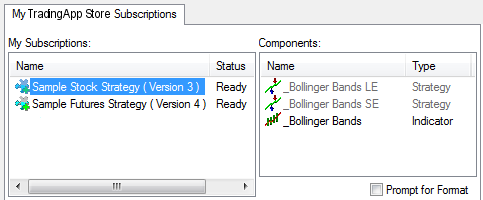
The My TradingApp Store Subscriptions tab is displayed. The product's
name and status is displayed in the My Subscriptions box. If you are
subscribed to a product with a free trial, the Status column will
inform you of when the free trial ends.
- Select
the desired product you want
to insert into the active RadarScreen page. The product's components
will be displayed in the Components box and will be added to the analysis
techniques that are currently inserted in the RadarScreen window.
- Click OK
to close the Select from TradingApp Store dialog. The selected product is listed in the
Available box of the Insert Analysis Techniques dialog indicating that it is ready to be added to the RadarScreen
page.
- Navigate to and select the product to insert into the RadarScreen
page, and click Add.
The product is moved to the Selected box of the Insert Analysis Technique
dialog. The indicators and products listed in the Selected box are
columns that will de displayed in the RadarScreen page.
- Use the Move
Up/Move Down buttons to determine the sort order in where you
want your product to be displayed in the RadarScreen page. Indicators
listed from top to bottom are displayed left to right as columns in
the RadarScreen page.
- Optional. Click Format to change general, inputs alerts, style, color and advanced
settings for the product. Modifying the format settings can be done
after the product is inserted into the RadarScreen page.
- Click OK to close the
Insert Analysis Techniques dialog. If the product is a free trial
and about to expire, the TradeStation TradingApp Store Dashboard is
displayed reminding you it is time to subscribe to the product.
- Click OK to insert the product into the RadarScreen
page. The product name is displayed as a column heading in the active RadarScreen
page.
Once you insert the product into the RadarScreen
page, how the product is displayed can be modified from the active RadarScreen
window. A product can be removed by highlighting the product's columns,
and using the menu, click Delete. You can move a product
by selecting the product's column heading, and move it to the desired
location by using the drag and drop method.

The Format > Analysis Technique
> All Analysis Techniques menu sequence displays the Format
Analysis Technique dialog. This will allow you to sort the analysis techniques
and products in the Selected column, and add additional products to the
RadarScreen page.
The Format > Analysis Technique
> [product name] menu sequence displays the Format [product
name] dialog. In this dialog, you can modify the formatting settings for
the selected product.