TradeStation Help
Applying a TradingApp Store Product to an OptionStation Analysis Window
 Activate an OptionStation Analysis window and insert the desired
Options symbol for the active
window.
Activate an OptionStation Analysis window and insert the desired
Options symbol for the active
window.
- Determine
and display the desired OptionStation Analysis pane to insert the
product to. By default, the Asset pane and Options pane are displayed
when launching the OptionStation Analysis window. To display the Spreads
and Positions pane, use the View
> Spreads Pane or View
> Positions Pane to insert into the active window.
- Select
a cell in the desired pane
where you want to insert the product.
- Select
Insert > Indicator from
the menu bar to display the Insert Analysis Technique dialog. The
Insert Analysis Technique dialog contains tabs that are associated
to each OptionStation Analysis pane. Verify the desired tab is selected
in where you want to insert the product to.
- Determine
and select the desired tab
(Futures, Options, Spreads, Positions, and Real Positions) to insert
the product from. From the desired tab, click the Add
from TradingApp Store button, and the My TradingApp Store Subscriptions
dialog is displayed.
- From
the My Subscriptions box, select the desired product
to insert into the RadarScreen page. The My Subscriptions box contains
the product's name and status.
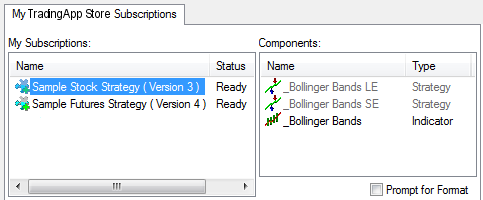
The product's components are displayed in
the Components box and will be added to the analysis techniques that are
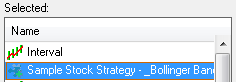
inserted into the OptionStation Analysis window. The Insert Analysis Technique
dialog displays the product selected from the My TradingApp Store Subscriptions
tab:
- Optional. Select and sort
the product in the desired order by using the Move Up/Move Down buttons.
Analysis techniques from top to bottom are displayed left to right
in the selected OptionStation pane.
The product is now available and displayed
in the Available box for future OptionStation Analysis windows. Products
are available as long as you continue to actively subscribe to the product
or are within the free trial period, if offered.
- Click OK
to insert the product into the OptionStation Analysis window.